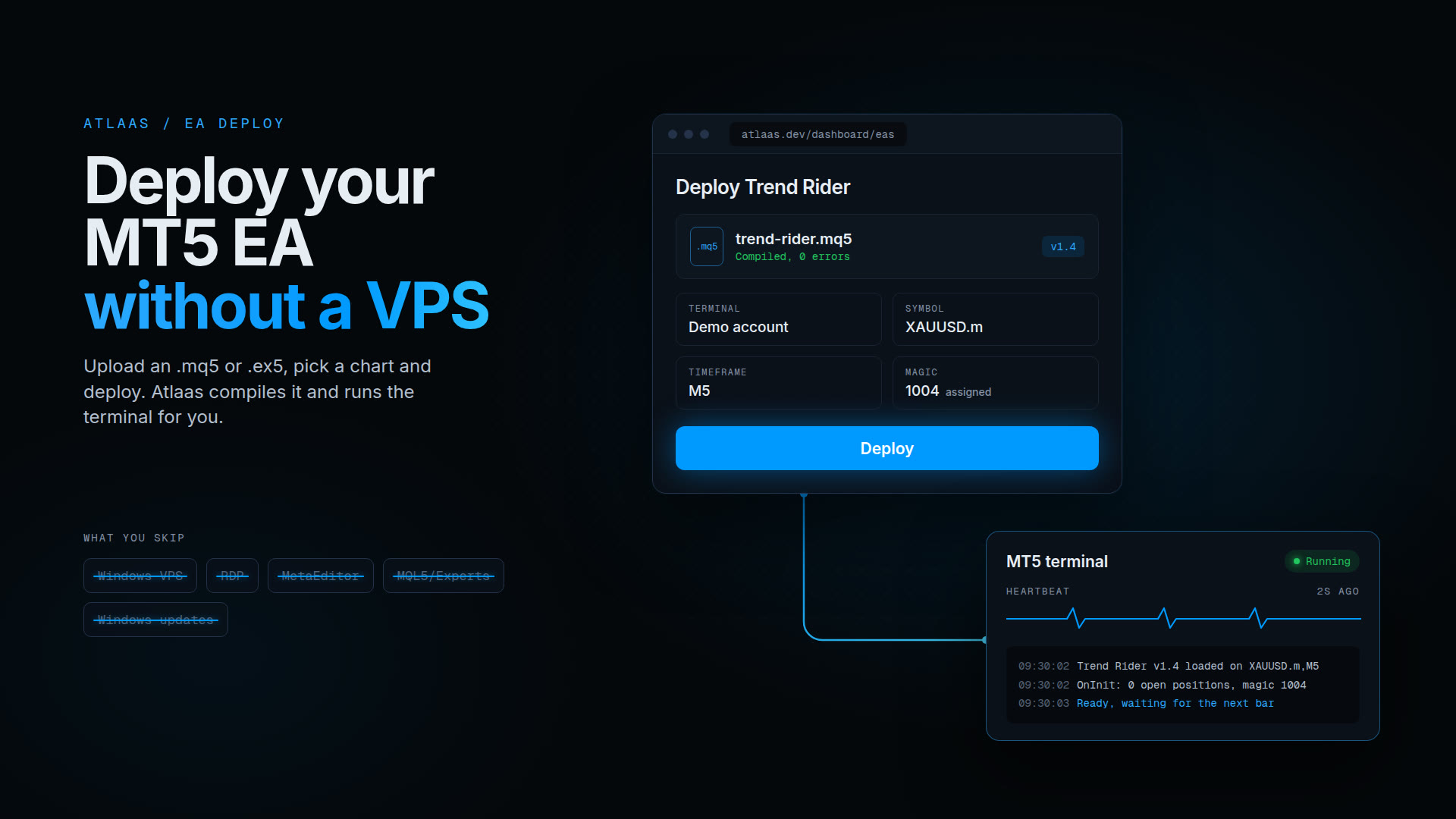
Running an MT5 Expert Advisor (EA) has traditionally meant renting a Windows VPS, installing MetaTrader 5, compiling the bot in MetaEditor and keeping the whole thing alive yourself.
You can now deploy the same EA from a browser. On a managed platform such as Atlaas, you connect your trading account, upload the EA, set its inputs and deploy it, without setting up a server or installing MetaEditor.
This guide shows how that works, explains the difference between .mq5 and .ex5 files, and helps you decide whether browser-based deployment or a traditional VPS fits your setup.
Quick answer: can you run an MT5 EA without a VPS?
Yes. A managed MT5 hosting service runs the terminal for you, so you never buy, configure or maintain a VPS of your own.
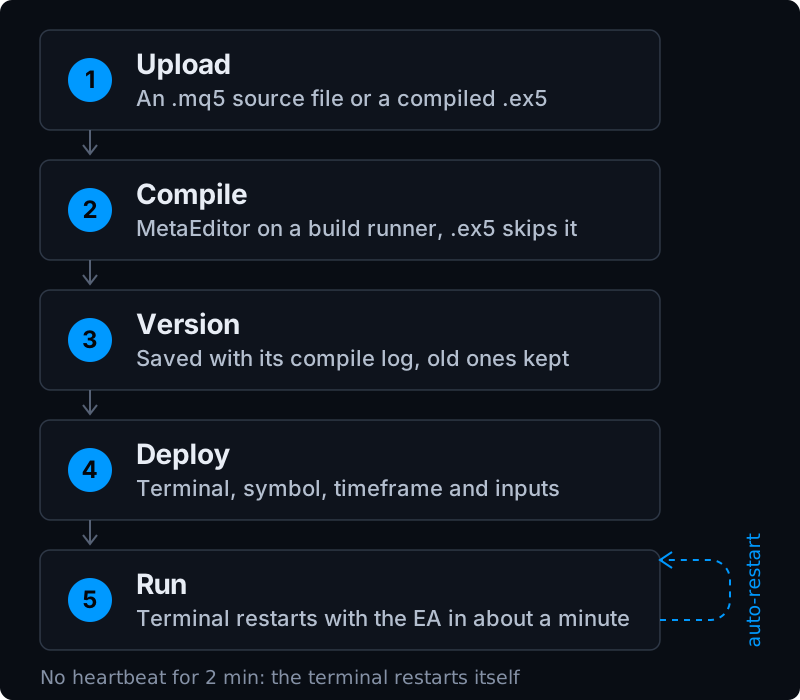
The EA still needs a machine that is always on. The difference is who looks after it. On Atlaas, deployment is five steps:
- Connect your MT5 trading account.
- Upload your EA as an
.mq5or.ex5file. - Pick the terminal, symbol, timeframe and inputs.
- Deploy it.
- Watch its state and logs from the browser.
Once it is running, you can close the browser and switch off your computer. The EA keeps trading on the hosted terminal.
Managed hosting removes the server you look after. It does not remove the need for a working broker connection, sensible risk limits or an EA that handles restarts.
What is an MT5 Expert Advisor?
An Expert Advisor is an automated trading program for MetaTrader 5, written in MQL5. Depending on how it is written, an EA can:
- enter trades on indicator or price-action signals;
- set stop loss and take profit levels;
- trail stops and take partial profits;
- watch several symbols at once;
- run a strategy with no one at the screen.
An EA only works while its terminal is open and connected. Stop loss and take profit levels sit on the broker's server and still trigger with the terminal closed. Anything the EA manages itself does not: trailing stops, break-even moves, time-based exits and new entries all stop until the terminal is back. That is why traders move EAs off their own PC.
The traditional way: deploying an EA on a VPS
A Windows VPS is a remote computer that runs MetaTrader 5 around the clock. Putting an EA live on one usually takes ten steps:
- Rent a Windows VPS from a hosting provider.
- Connect to it over Remote Desktop (RDP).
- Download and install MetaTrader 5.
- Log in to your trading account with your broker's server details.
- Open MetaEditor if you need to compile
.mq5source code. - Copy the
.ex5into the terminal'sMQL5/Expertsfolder. - Refresh the Navigator so the EA appears.
- Attach the EA to a chart with the right symbol and timeframe.
- Set its inputs and turn on Algo Trading.
- Keep the terminal running, and watch for errors, disconnections and server problems.
It works, and it gives you full control. It also makes you the server administrator.
Why VPS-based automation gets complicated
The first deployment is fine. The overhead grows with every account, EA and version you add.
| Problem | What it looks like on a VPS |
|---|---|
| Server upkeep | Windows updates, restarts, full disks and frozen terminals stop the EA. |
| More accounts | Every account is another MT5 install, another login, another copy of the EA. |
| Updates | A new version means RDP, copy, compile and reattach on every terminal that runs it. |
| Version drift | MT5 keeps no history of the files you copied in, so it is easy to lose track of which version runs where. |
| Remote access | Changing one input still means an RDP session. |
| Monitoring | A stalled terminal looks the same as a quiet market. You find out when a trade is missed. |
The update problem grows fastest. Shipping one fix to ten terminals by hand is forty steps, as the chart in the update section below shows.
How to deploy an MT5 EA without a VPS on Atlaas
Atlaas runs MT5 terminals on managed servers, so the whole deployment happens in the portal. MT5 still runs on Windows underneath; you just never see it.
Step 1: connect your MetaTrader 5 account
Create a terminal and enter your MT5 login, password and broker server. Atlaas encrypts the password when it arrives and releases it only to the server that runs your terminal.
Before your first deployment, check that:
- the account is active and you can log in to it;
- your broker allows Expert Advisors on that account type;
- the symbols you want to trade are available on it.
Use a demo account for your first deployment.
Step 2: upload your Expert Advisor
Running your own EA needs the Pro plan or above. Atlaas accepts both MT5 file types:
.mq5 source code | .ex5 compiled file | |
|---|---|---|
| What it is | The readable MQL5 source | The binary MetaTrader 5 runs |
| Compiling | A build runner compiles it with MetaEditor; the log is saved on the version | Already compiled, deployable immediately |
| Inputs | Atlaas builds an inputs form from your input lines | You paste a .set file |
| Edit in the browser | Yes, saving creates a new version | No |
| Size limit | 4 MB | 16 MB |
If an .mq5 fails to compile, the version shows the compile log and cannot be deployed until it is fixed. You never need MetaEditor on your own computer.
Some EAs depend on things a hosted terminal does not provide. Atlaas compiles only the file you upload and copies only the EA's .ex5 to the terminal, so these do not work:
- your own
.mqhinclude files (paste their code into the.mq5; standard library headers such as<Trade\Trade.mqh>are fine); - DLL imports;
WebRequestcalls;- custom indicators loaded with
iCustom(use built-in ones such asiMAandiATR, or compute the indicator inside the EA).
Step 3: configure the deployment
A deployment is one chart on one terminal. For example:
| Setting | Example |
|---|---|
| Terminal | Your demo account |
| Symbol | XAUUSD.m, exactly as your broker names it |
| Timeframe | M5 (any of M1, M5, M15, M30, H1, H4, D1, W1, MN1) |
| Lot size | 0.01, set in the inputs form |
| Stop loss and take profit | Whatever your EA's inputs define |
| Magic number | Assigned by Atlaas, unique to this deployment |
These are examples, not recommended trading parameters.
Two details matter here. First, Atlaas owns the magic number: it gives each deployment its own and writes it into your EA's magic input (named like InpMagic) every time the terminal starts. That is how it links trades to the deployment that placed them. Second, you can save inputs as named presets on the EA, so ten deployments get the same values without ten rounds of typing.
Check the settings carefully. A wrong lot size or symbol is real money on a live account.
Step 4: deploy the EA
Click Deploy. MT5 only loads charts when it starts, so the terminal restarts with your EA attached, usually within about a minute.
Before you call it done, confirm that:
- the version compiled (or is an
.ex5); - the deployment is on the terminal and symbol you meant;
- the deployment shows Running, not Error (if
OnInit()fails or MT5 cannot load the EA, the reason shown is MT5's own message); - the EA's startup lines appear in the terminal's logs.
An upload alone does not mean the EA is trading. Check that it is running.
Step 5: monitor it from the browser
| What you see | Where it comes from |
|---|---|
| Terminal health | Every terminal sends a heartbeat. One that goes quiet for more than two minutes is restarted automatically. |
| EA logs | Every line your EA prints appears on the terminal's Logs page. |
| Deployment state | Pending, Running, Stopped or Error, with MT5's reason for an error. |
| Trades | Matched to the deployment by its magic number. |
| Alerts | Trade and failure events can reach email and your other notification channels. |
You can close the browser after deploying. The EA keeps running on the hosted terminal; continuity then depends on the hosting service, the broker connection and your EA's own health.
Atlaas vs. a self-managed Windows VPS
Both keep an EA running without your PC. The real difference is who manages the machine.
| Atlaas managed deployment | Self-managed Windows VPS | |
|---|---|---|
| Rent and set up a Windows server | Not needed | Required |
| Install MetaTrader 5 | Done for you | By hand, per account |
Compile .mq5 without local MetaEditor | Yes, on a build runner | No |
| Deploy and change inputs from a browser | Yes | Over RDP |
| Windows updates and restarts | Handled for you | Your job |
| Stalled terminal | Restarted after two minutes without a heartbeat | Your job to notice |
| EA versions and rollback | Every upload kept as a version | Manual file management |
DLLs, WebRequest, custom indicators | Not supported | Supported |
| Other software next to MT5 | No | Yes |
| Server and network control | Pick a region | Full control |
Neither option wins everywhere. A VPS gives you a whole Windows machine. A managed platform takes the machine off your hands.
Do you need MetaEditor to run an MT5 EA?
No, not on your own computer. MetaEditor is where MQL5 code is written, debugged and compiled. Running an EA is a different job:
- With an
.ex5, compiling is already done. - With an
.mq5, it still has to be compiled. On Atlaas a build runner does that for you. - An EA that needs DLLs,
WebRequestor custom indicators still needs a full terminal, such as one on a VPS.
Can an MT5 EA run 24/7 without your PC?
Yes, once it runs on a machine that is always on: a VPS, MetaTrader's own virtual hosting or a managed service like Atlaas.
Running 24/7 is not the same as trading without interruption. Market closures, broker disconnections, maintenance, rejected orders and bugs in the EA still stop trades. On Atlaas the terminal also restarts whenever a deployment on it changes, so your EA should rebuild its state from open positions in OnInit() and never act twice on the same bar.
Updating and rolling back an EA
Deploying is the first step of running an automated strategy. Strategies change, bugs get fixed and risk limits move, and each change is another deployment.
On a VPS, an update repeats four steps on every terminal: connect over RDP, copy the new file, compile or refresh, and reattach the EA with its inputs. On Atlaas you upload the new version once, then swap each deployment to it: remove the old deployment and deploy the new version.
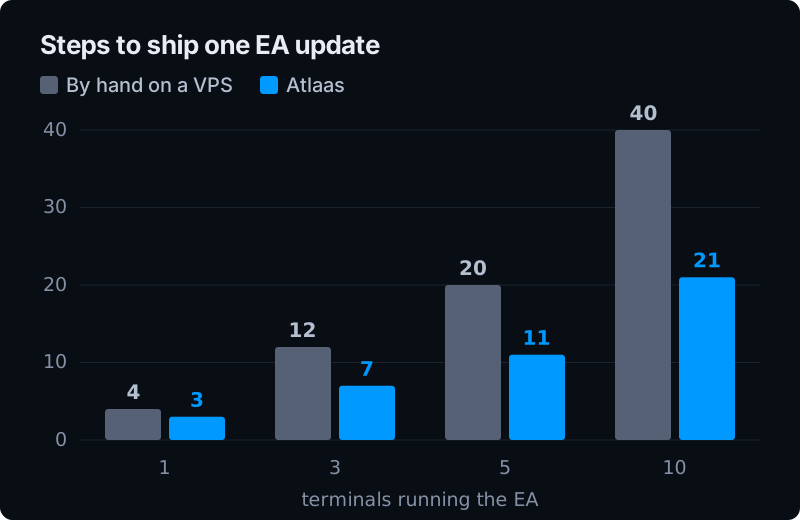
Counted from the steps in this guide: 4 per terminal by hand; on Atlaas 1 upload plus 2 per terminal.
Updating an EA
- Upload the new
.mq5or.ex5. Every upload becomes a new version, and the old ones are kept. - Check the compile log and any new inputs.
- Decide what happens to open positions (see the note below).
- Remove the old deployment and deploy the new version.
- Check the deployment shows Running and read its first log lines.
Mind the magic number. A new deployment gets a new magic number, so the new EA will not manage positions opened by the old deployment. Close them first, or manage them by hand. Disabling or removing a deployment never closes its positions.
Avoid running the same strategy twice by accident. Two deployments of one EA on the same terminal each get their own magic number and manage only their own trades. On a netting account they share one position per symbol and cannot be told apart, so use a hedging account if more than one EA trades a symbol.
Rolling back
Rolling back works the same way: deploy the earlier version again. A version that is still deployed cannot be deleted, so the one you are running is never lost.
Old code does not undo new trades. Before rolling back, check what the newer version left open.
Common MT5 EA deployment problems and how to fix them
| Symptom | Likely cause | What to check |
|---|---|---|
| The version will not deploy | The .mq5 failed to compile | The compile log on the version. A missing .mqh or #import is the usual culprit. |
| The deployment shows Error | OnInit() returned failure, or MT5 could not load the EA | MT5's message on the deployment and the EA's own log lines. An MT4 .ex4 will not run on MT5. |
| Running, but no trades | The signal has not fired, or orders are rejected | Margin, market hours, the symbol name and the strategy conditions. Raise an alert when a trade call fails, because rejected orders leave no deal behind. |
| Works on your PC, fails hosted | A dependency the hosted terminal lacks | DLLs, WebRequest, iCustom and local files. |
| Wrong symbol, or no data | Broker symbol suffixes | Use the exact broker name (XAUUSD.m, EURUSD.r) and read _Symbol in the EA instead of hardcoding it. |
| Repeated entries after a restart | The EA keeps state only in memory | Rebuild state from open positions in OnInit() and remember the current bar. |
Before restarting anything on a live account, check its open positions and exposure.
When a Windows VPS is still the better choice
Managed hosting runs MT5 and your EA, nothing else. Choose a VPS if your EA needs:
- third-party DLLs,
WebRequestor custom indicators you cannot fold into the EA; - MT4, or other Windows software running next to MT5;
- full administrator access to the operating system;
- custom networking, local files or background services;
- a licensing scheme that checks a machine or a web server.
For heavily customised setups, a VPS gives you the flexibility you need. For a conventional EA, a browser-based workflow is much simpler. If you want the same portal on your own hardware, the Pro plan and above can run the Atlaas runner on a Windows machine you control. For a wider comparison of the options, see MT5 VPS or hosted terminal.
Checklist before you go live
- The EA has been backtested and run on a demo account for at least a week.
- Your broker allows automated trading on this account type.
- The symbol name, timeframe, inputs and lot size are correct.
- The EA does not rely on DLLs,
WebRequest, custom indicators or extra include files. - Every position carries a stop loss on the broker's server.
- The EA has one magic number input and uses it on every order.
- No second deployment trades the same strategy by accident.
- The EA rebuilds its state from open positions after a restart.
- The deployment shows Running and its logs show a clean start.
No hosting method can make a losing strategy profitable, or take the risk out of automated trading.
Frequently asked questions
Can I deploy an MT5 EA without a Windows VPS?
Yes. A managed MT5 hosting service provides the always-on machine, so you do not buy, configure or maintain a VPS yourself.
Can I run an MT5 EA from my browser?
You deploy and manage it from the browser. The EA itself runs in an MT5 terminal on Atlaas's servers, not inside a browser tab.
Can I run an MT5 EA without MetaEditor?
Yes. An .ex5 is already compiled. An .mq5 has to be compiled, and Atlaas does that on a build runner, so you never install MetaEditor.
Can my EA keep running when my computer is off?
Yes. Once it runs on a hosted terminal, your own computer plays no part.
What is the difference between .mq5 and .ex5 files?
An .mq5 is MQL5 source code. An .ex5 is the compiled program MetaTrader 5 runs. Source has to be compiled into an .ex5 before a terminal can run it.
Is a hosted MT5 EA better than a VPS?
It depends on the EA. Hosting is simpler to set up, update and monitor. A VPS gives you control over the operating system, extra software and networking.
Does an MT5 EA need an internet connection?
Yes. The terminal needs a working connection to your broker to trade. Hosting moves that job off your own device; it does not remove it.
Can I deploy several Expert Advisors?
Yes, across charts and terminals, on the Pro plan and above. Each deployment is one chart, and how many terminals you can run depends on your plan.
Is Atlaas the same as the MetaTrader 5 WebTerminal?
No. The WebTerminal is a browser window onto your account, and it does not run EAs. Atlaas runs full MT5 terminals on its servers and deploys your EAs to them.
Final thoughts
You do not need to become a Windows administrator to automate a MetaTrader 5 strategy. A VPS is still the right tool when you need a whole machine. If you just want to upload an EA, connect an account, deploy and watch it run, managed hosting takes the server out of the job.
The Expert Advisors docs list every rule for EAs on Atlaas and end with a starter EA that follows all of them. Connect a demo account first, and move to live trading once the EA has proved itself.
References: MetaTrader 5: Expert Advisors · MQL5: Editing, compiling and running programs · MetaTrader 5: Platform settings
Risk disclosure: automated trading involves financial risk. Execution, uptime and results depend on market conditions, your broker, platform compatibility and how your EA behaves. No trading outcome is guaranteed.