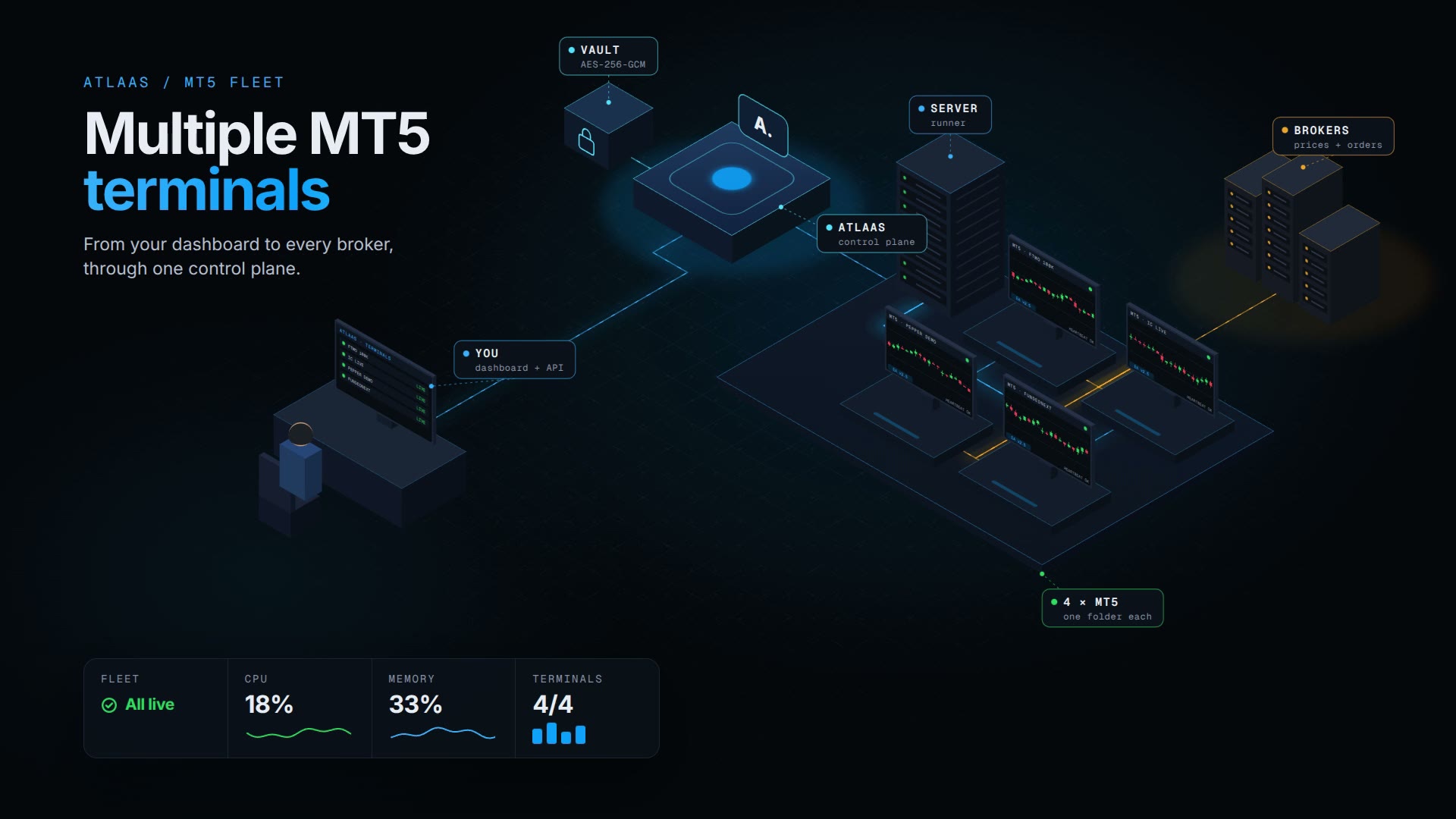
Running multiple MT5 terminals comes down to a few non-negotiable fundamentals: install each copy in its own directory, use /portable mode so data never overlaps, and size your VPS to match your actual terminal count. MT5 itself will run as many separate installations, each logged in to its own account, as you set up; in practice the limits come from your hardware and your broker's session policies. Once those foundations are in place, the rest is configuration.
The problem is that most traders start by just opening another MT5 instance, and that's where the trouble begins. EAs can write to shared folders without warning, terminals compete for CPU without any built-in throttling, and two copies touching the same broker server session create order conflicts that are genuinely hard to diagnose. None of this needs an unusual setup to happen; a quick copy-and-launch is enough.
For traders managing more than a handful of accounts, platforms like Atlaas exist specifically to provision and monitor every terminal from a single dashboard. But the manual setup is where every multi-terminal trader should start, because the fundamentals don't change regardless of how you eventually scale.
Key takeaways
- Separate directories required: Each MT5 install must live in its own folder; two copies cannot run from the same directory without silent data conflicts.
- Use
/portablemode to enforce isolation: It forces each terminal to store data next to its own executable rather than in shared Windows AppData paths. - Size for EA complexity: Budget roughly one vCPU per actively processing terminal, plus 2–4 GB RAM for the first and 1–2 GB for each additional one.
- EAs don't transfer automatically: Installing an EA in one terminal's data folder makes it invisible to all other terminals, which creates deployment overhead at scale.
- Manual setup has a ceiling: Past about five terminals, operational overhead compounds faster than most traders expect.
- Orchestration fills the gap: Tools like Atlaas handle provisioning, EA versioning, rollback and monitoring when manual management breaks down.
Why running multiple MT5 terminals creates more friction than you'd expect
The first sign of trouble in most multi-terminal setups isn't a crash. It's unexpected EA behavior that takes hours to trace back to a folder conflict. MT5 uses a hash of the installation path to decide where it stores user data in %APPDATA%\MetaQuotes\Terminal\. Launch two terminals from the same installation path and they share that data directory, silently overwriting each other's profiles, logs and EA settings.
Beyond folder conflicts, two other failure modes catch traders off guard.
First, a single MT5 terminal can only hold one active account connection at a time. If you log into the same funded account from two separate terminals simultaneously, both EAs can place, modify or close orders on the same position with no coordination between them.
Second, resource consumption doesn't scale linearly. A terminal running five symbols with three indicators per chart uses considerably more CPU than a single-pair terminal, and without proper resource scoping, one heavy EA can starve everything else running on the same machine.
Shared data conflicts, session conflicts and resource exhaustion together account for most of the instability traders blame on MT5 itself. The platform isn't the problem; the configuration is.
How to set up separate MT5 installations that don't conflict with each other
Every terminal you run at the same time needs its own installation directory. The workflow is straightforward, but skipping any step reintroduces the exact conflicts you're trying to prevent.
Download MT5 directly from each broker's website. Broker-specific builds come with that broker's server list, and using the broker's own installer is the cleanest approach.
- Run the installer, click Settings, and set a unique path for each terminal:
C:\MT5\BrokerA-Live,C:\MT5\BrokerB-Demo, and so on. - Complete the installation, then repeat with a different folder for every additional terminal.
- Rename each desktop shortcut clearly so there's no ambiguity at launch.
- After logging in, confirm isolation: go to File → Open Data Folder in each terminal and verify that each one opens a different path.
Portable mode
Portable mode is the cleaner method for enforcing data isolation going forward. Right-click each terminal shortcut, select Properties, and append /portable after the executable path in the Target field:
"C:\MT5\BrokerA-Live\terminal64.exe" /portable
With portable mode active, the terminal stores all data next to its own executable rather than in the hashed AppData path. Each directory then holds its own charts, profiles, logs, EAs and indicators, fully independent of every other install. This makes backup, migration and auditing straightforward.
One limitation worth noting: portable mode separates local files but does not override broker-side session rules or simultaneous connection policies.
VPS specs for running multiple MT5 terminals reliably
The most common cause of terminal instability isn't bad EA code; it's an underpowered VPS. Resource consumption is driven more by EA complexity than by terminal count alone. A multi-symbol scanner can consume as much CPU as three simple single-pair terminals, so sizing your machine on terminal count alone routinely leads to undersizing.
According to guidance from vpsforextrader.com and quantvps.com, a practical planning rule is one vCPU per actively processing terminal, plus 2–4 GB RAM for the first terminal and 1–2 GB for each additional one. Here's how that translates to real hardware:
| Workload | CPU | RAM | Storage | Suitable for |
|---|---|---|---|---|
| 1–2 light terminals | 2 vCPU | 4 GB | 30–50 GB NVMe | Few charts, simple EAs |
| 2–4 moderate terminals | 2–4 vCPU | 6–8 GB | 50–80 GB NVMe | Multiple accounts, standard EAs |
| 4–8 heavy terminals | 4–8 vCPU | 8–16 GB | 80–150 GB NVMe | Multi-symbol scanning, copy trading |
| 10–15 terminals | ~16 cores | ~32 GB | ~400 GB SSD | Scale only after load testing |
For most traders running three or four standard terminals, a 4 vCPU, 8 GB RAM machine with NVMe storage is a sensible starting point, according to vpsforextrader.com. Scale based on measured peak usage, not terminal count alone, because EA complexity dominates resource consumption.
Windows settings that matter
Hardware alone isn't enough; how Windows is configured on that VPS matters just as much. Several settings directly affect stability and are frequently skipped:
- Set the power plan to High Performance. The default balanced plan throttles CPU under load.
- Disable sleep, hibernation and unnecessary startup applications.
- Schedule Windows updates outside trading hours.
- Stagger terminal launches. Use Task Scheduler to start terminals a few seconds apart so they don't all spike CPU at once.
- Disconnect from RDP, don't log out. The user session must stay active for EAs to keep processing.
- Keep headroom. Hold average CPU below 70–80% during peak hours and keep around 20% of RAM free.
How to keep EAs isolated across multiple MT5 terminals
EAs installed into one terminal's MQL5\Experts folder are not visible to any other terminal. This is intentional isolation, but it creates real deployment overhead when you need the same EA running across five different accounts.
The correct workflow is to copy the EA binary into each terminal's own data folder, restart or refresh the Navigator in that terminal, and verify the Expert appears before attaching it to a chart. Skipping that verification step is how traders end up with one terminal running a stale strategy version without realizing it.
One frequently missed conflict: running the Strategy Tester on a production VPS during live trading hours. Backtesting and optimization are CPU-intensive operations that compete directly with live EA processing. Run tests during market-closed hours or on a separate machine entirely.
Prop firm rules
For prop firm accounts, confirm the firm's current rules before deploying EAs across multiple MetaTrader 5 terminals.
- FTMO permits EA trading but enforces a daily server-request limit and prohibits abusive strategies, according to FTMO's published rules. Verify the current figure directly on their site before deployment.
- FundedNext allows EAs on eligible accounts, but per FundedNext's published rules, accounts of $50,000 or more must be traded manually, the same EA may not place identical trades across accounts, and each EA strategy is capped at a $300,000 maximum allocation.
Always confirm current firm-specific rules before deploying the same EA across more than one funded account.
What happens when you push past five terminals?
Up to about five terminals, manual management is inconvenient but workable. Beyond that, the overhead compounds fast.
Each new terminal needs its own directory created, shortcut configured, EA installed, login verified and Task Scheduler entry set. Multiply that by EA version updates: when a strategy needs a patch, you're manually replacing the binary in every installation individually. A missed terminal runs a stale strategy, and you likely won't catch it until you check manually.
Trade copier EAs solve one specific problem: replicating trades from a master terminal to multiple receivers. They don't address provisioning, EA versioning or monitoring. You still stand up each terminal by hand, install the copier EA into each one, and monitor them individually. Cloud copiers add subscription costs and external server dependency on top of that. Neither approach eliminates the underlying operational overhead of managing the terminal fleet itself.
Is there a smarter way to manage all your terminals from one place?
When manual setup breaks down at scale, the missing piece is an orchestration layer: a control plane that provisions new MT5 terminals, deploys EAs with version control and rollback, and shows every terminal's status in one place.
That's what Atlaas is built to do. Instead of RDP-ing into a server and configuring each installation by hand, you create a new terminal from the Atlaas dashboard or the API: pick a region, enter the MT5 login and broker server, and Atlaas runs it. When an EA update goes out, you push one version to any set of terminals, see exactly which version runs where, and roll back to an earlier version without re-uploading. Failed deploys are retried up to three times, and a terminal that stops reporting a heartbeat for two minutes is restarted on its own.
For a prop firm trader running accounts at several firms at once, every terminal shows up in the same dashboard and the same REST and WebSocket API, so you check one screen instead of switching between windows.
Atlaas covers the full MT5 terminal lifecycle: provisioning, EA deployment, versioning and rollback. Terminals run on Atlaas servers by default, and the Pro plan can run them on your own Windows machine instead. Either way, your MT5 password is encrypted with AES-256-GCM on receipt, never stored in plaintext, and released only to the machine that runs your terminal. For traders managing more than five terminals, that combination of control and automation is the gap that manual configuration simply can't fill.
The bottom line on running multiple MT5 terminals
Running multiple MT5 terminals efficiently is solvable with the right setup: separate install directories, portable mode, a properly specced VPS and clean EA management per terminal. For most traders running two to four accounts, the manual approach works fine once configured correctly. The steps aren't complicated; they just require discipline.
The moment you scale beyond that, the time cost of managing each terminal individually becomes the bottleneck, not the technology itself. You stop asking how to set things up and start asking how to stop thinking about setup altogether. That's the shift a terminal orchestration platform is designed to support.
If manual terminal management is eating into your trading time, Atlaas is built for that exact problem. Start with one hosted terminal on the Free tier, or talk to the team about how it fits your infrastructure.
Frequently asked questions
Are trade copier EAs enough to manage multiple terminals by themselves?
No. Trade copier EAs solve only trade replication from a master to receivers. They do not handle provisioning, EA versioning or centralized monitoring, so you still have to set up and manage each terminal individually and install the copier EA into each one.
Does MetaQuotes restrict concurrent logins across multiple MT5 terminals?
Not in MT5 itself: it lets you run separate installations side by side, each logged in to its own account. In practice the limits on simultaneous connections come from your hardware and your broker's session policies, so account-level conflicts and broker rules are what you need to watch for.
Will MT5's portable mode prevent broker-side session conflicts?
No. Portable mode isolates local files and data directories for each terminal, but it does not override broker-side session rules or simultaneous connection policies. You can still hit session conflicts if the broker or account policy forbids multiple concurrent connections.